
Unlocking Inclusivity: Your Guide to Web Accessibility
A website today serves as much more than just an online presence – it’s a critical communication channel, marketplace, and information source. But what happens when portions of your audience simply can’t access or engage with your content? This is where web accessibility becomes essential. It focuses on creating websites usable by everyone, including people with disabilities affecting vision, hearing, motor function, and cognitive abilities. Understanding accessibility isn’t merely about regulatory compliance – it’s about creating inclusive spaces, reaching wider audiences, and building a more positive brand reputation.
Web accessibility has come a long way since the internet’s early days. What began as simply providing alt text for images now encompasses a comprehensive range of considerations – from keyboard navigation and color contrast to content structure and multimedia accessibility. This evolution reflects our growing understanding of users’ diverse needs and the importance of universal design principles.
Effective accessibility requires an empathetic, proactive approach that considers multiple user perspectives from the beginning of development rather than treating it as an afterthought. This approach is guided by the Web Content Accessibility Guidelines (WCAG) developed by the World Wide Web Consortium (W3C), which provides a framework for creating truly inclusive online experiences.
This guide will equip you with 10 crucial website accessibility best practices that matter for both ethical and strategic reasons. By implementing these strategies, you’ll create a more welcoming online environment while also improving your SEO, boosting user engagement, and demonstrating your commitment to digital inclusion. Discover how relatively simple changes can dramatically improve your website’s accessibility and expand its reach to all users.
1. Implement WCAG 2.2 Guidelines

Web accessibility has become essential for any successful online presence. Implementing the Web Content Accessibility Guidelines (WCAG) 2.2 helps businesses reach wider audiences, boost SEO rankings, and create a more inclusive user experience. This foundational step creates the backbone for a truly accessible website that works for everyone.
WCAG is developed by the W3C Web Accessibility Initiative (WAI), providing an internationally recognized framework for making websites accessible to people with disabilities. The latest version, WCAG 2.2, builds on previous standards with additional criteria that address cognitive and mobile accessibility needs. It’s organized around four fundamental principles known as POUR:
- Perceivable: Information and interface elements must be presented in ways users can perceive.
- Operable: Navigation and interface components must be usable by everyone.
- Understandable: Information and interface operations must be easy to comprehend.
- Robust: Content must work reliably across platforms, including with assistive technologies.
These principles break down into specific success criteria organized into three conformance levels: A (minimum), AA (recommended), and AAA (highest). Each level builds progressively, with AAA representing the gold standard of accessibility, though it can be challenging to achieve across all content types.
Features of WCAG 2.2:
- Three conformance levels: A, AA, and AAA
- Four main principles: Perceivable, Operable, Understandable, and Robust (POUR)
- Specific success criteria for each level
- Techniques and examples for implementation
Pros of Implementing WCAG 2.2:
- Comprehensive framework for accessibility
- Globally recognized standard, referenced in laws like Section 508 (US) and EU Web Accessibility Directive
- Clear, testable success criteria
- Regular updates addressing new technologies
Cons of Implementing WCAG 2.2:
- Technical complexity, especially for AAA conformance
- Requires ongoing maintenance as content changes
- Some criteria have subjective elements
- Full AAA compliance can be difficult for complex websites
Real-world examples:
- GOV.UK: UK government websites maintain WCAG 2.1 AA standards minimum, showing strong public sector commitment.
- BBC websites: Beyond WCAG implementation, BBC developed additional Mobile Accessibility Guidelines, recognizing multi-device accessibility importance.
- Microsoft: Extensively implements WCAG throughout its website and products, demonstrating how large organizations can integrate accessibility into core design processes.
Tips for Implementation:
- Start Small, Think Big: Focus first on critical user paths like checkout processes or contact forms.
- Automated and Manual Testing: Use automated tools to spot common issues, but also conduct testing with actual users who have disabilities.
- Aim for AA Compliance: WCAG 2.2 Level AA is widely considered the practical standard for most websites.
- Document Your Efforts: Create an accessibility statement that outlines your WCAG commitment and implementation steps.
By making WCAG 2.2 a priority, you improve the experience for people with disabilities while also enhancing your SEO, expanding your audience reach, and showing a genuine commitment to inclusion. This benefits both your users and your business goals. For more detailed information, visit the W3C Web Accessibility Initiative (WAI) website.
2. Semantic HTML Structure
Semantic HTML is essential to website accessibility and should be a top priority in your development process. It’s about using HTML elements for their intended purpose – conveying the meaning of content rather than just its visual presentation. This approach significantly improves the online experience for users with disabilities while offering numerous benefits for everyone.
Think about reading a book where all text looks identical. It would be nearly impossible to distinguish headings from paragraphs or lists. For people using screen readers, non-semantic HTML creates exactly this problem. Semantic HTML provides the structure these technologies need to interpret and present information effectively. Using proper heading hierarchy (h1-h6), elements like <nav>, <main>, <article>, structured lists, and properly labeled forms creates a clear roadmap for navigation. When HTML semantics aren’t enough, ARIA roles can fill the gaps.
Several major websites demonstrate excellent semantic HTML implementation. The Guardian uses well-structured semantic HTML that allows screen readers to navigate articles smoothly. Wikipedia implements clear heading hierarchies that make relationships between content sections easy to understand. Amazon consistently uses semantic elements for navigation, making browsing simpler for all users. These sites offer great examples of semantic HTML in action.
The movement toward semantic HTML gained momentum with the HTML5 specification from the W3C. Key figures like Steve Faulkner, an HTML5 editor, and Léonie Watson, an accessibility expert and W3C Working Group member, have championed its importance in building an inclusive web.
Pros of using Semantic HTML:
- Improves screen reader navigation and comprehension: Assistive technologies can accurately interpret and convey content structure.
- Enhances SEO performance: Search engines better understand context and relevance, improving rankings.
- Creates more maintainable code: Well-structured code is easier to understand and update.
- Simplifies responsive design implementation: Provides a solid foundation for adapting layouts across devices.
Cons of using Semantic HTML:
- May require refactoring legacy code: Updating older websites can be time-consuming.
- Developers need training on semantic principles: Specific knowledge and skills are required.
- Can conflict with certain design patterns: Careful planning is needed to ensure semantic structure and visual design work together.
Tips for implementing Semantic HTML:
- Use heading levels in correct order without skipping (h1 to h6).
- Replace generic
<div>elements with semantic alternatives like<nav>for navigation and<article>for self-contained content. - Use the HTML validator to check for structural issues.
- Test with a screen reader to verify logical reading order and assistive technology compatibility.
Read also: Website Accessibility Checklist for Businesses. This checklist helps ensure your site is accessible to everyone. Businesses seeking better online visibility, digital marketing professionals, companies in competitive industries, entrepreneurs, and organizations focusing on long-term SEO strategies all benefit from implementing semantic HTML. For more information on site structure, explore our sitemap: https://organicmediagroup.org/category-sitemap1.xml. By making semantic HTML a priority, you’re not only improving accessibility but also creating a stronger, more maintainable, and SEO-friendly website.
3. Keyboard Accessibility
Keyboard accessibility is essential for creating websites that everyone can use. It ensures that all website functions can be operated with a keyboard alone, which is vital for people who can’t use a mouse. This includes individuals with motor disabilities, those with vision impairments, and anyone using alternative input devices. For businesses, keyboard accessibility isn’t just an ethical consideration—it directly impacts your audience reach and search rankings.
At its core, keyboard accessibility means users can navigate, interact with, and operate all interface components using only their keyboard. From navigating links and buttons to completing forms and controlling media players, everything should work without requiring a mouse.
Why is Keyboard Accessibility So Important?
Ignoring keyboard accessibility excludes a significant portion of potential visitors to your site. For businesses looking to maximize their online presence and connect with more customers, inclusive design isn’t optional. Search engines also reward accessible websites with better rankings. By implementing proper keyboard accessibility, you’re showing social responsibility while also improving your SEO performance.
Key Features of a Keyboard Accessible Website:
- Logical Tab Order: When users press the Tab key, focus should move through interactive elements in a natural, intuitive sequence that matches the visual layout.
- Visible Focus Indicators: Users need clear visual cues (like highlighted borders) showing which element currently has keyboard focus. This helps everyone track their position on the page.
- No Keyboard Traps: Users should never get stuck on any element without being able to move away using the keyboard.
- Shortcuts and Access Keys: Providing keyboard shortcuts for common actions improves efficiency for all users, especially frequent visitors.
- Standard Keyboard Interactions: Supporting predictable keyboard controls like Enter, Space, and arrow keys creates a consistent experience.
Pros:
- Critical for users with motor and visual impairments.
- Benefits power users who prefer keyboard navigation.
- Improves usability on mobile devices with keyboard accessories.
- Often helps identify other accessibility issues during testing.
Cons:
- Can be difficult to implement for complex interactive components.
- Custom interface elements often need additional ARIA attributes and event handlers.
- May interfere with certain JavaScript behaviors if not properly implemented.
Real-World Examples:
- Google Docs: Offers comprehensive keyboard shortcuts, showing how keyboard accessibility can enhance complex web applications.
- GitHub: Provides a fully keyboard-navigable interface, essential for developers who often prefer keyboard-driven workflows.
- Twitter: Uses keyboard shortcuts for timeline navigation, making the platform more efficient for everyone.
Practical Tips for Implementation:
- Manual Testing is Key: Always test your tab order by hand. Automated tools help but can’t catch everything.
- Use
tabindex="0": This attribute helps include custom, non-interactive elements in the natural tab order. - Avoid
tabindexGreater than 0: Using values above zero disrupts the natural tab sequence and creates confusion. - Accessible Dropdowns and Modals: Make sure these dynamic elements work with keyboards and properly manage focus.
- Skip Links: Add visible links allowing keyboard users to bypass repetitive navigation sections.
Evolution and Popularization:
Keyboard accessibility has been fundamental to web accessibility since the internet’s early days. Its importance has been consistently emphasized by organizations like WebAIM through their keyboard accessibility guidelines, and educators like Rob Dodson through his A11ycasts video series. US Section 508 standards have also played a key role in promoting keyboard operability for government websites, encouraging wider adoption across the web. This ongoing focus ensures that as technology advances, keyboard accessibility remains central to creating an inclusive online environment for everyone.
4. Accessible Images and Media
Images and multimedia content play a central role in today’s web experience. Yet without proper implementation, these elements can become barriers for people with disabilities. Making your visual and audio content accessible to everyone isn’t just good practice—it’s essential for creating an inclusive website and can significantly boost your SEO performance.
Accessibility for images and media involves several important components:
- Alt text for informative images: This short, descriptive text explains an image’s content and purpose to users who cannot see it. Screen readers rely on alt text to communicate visual information to blind and low-vision users.
- Empty alt attributes for decorative images: Images that serve only decorative purposes should have an empty alt attribute (
alt=""), signaling assistive technologies to skip over them. - Captions and transcripts for videos and audio: Captions provide text that matches spoken content in videos, while transcripts offer complete text versions of all audio and visual elements.
- Audio descriptions for visual information in videos: These narrations explain important visual details not conveyed through dialogue, such as scene changes, character actions, and on-screen text.
- No content that flashes more than 3 times per second: Content that flashes rapidly can trigger seizures in some people. The WCAG guidelines specifically limit flashing content to protect users with photosensitive conditions.
Benefits of Accessible Images and Media:
- Greater accessibility for users with disabilities: Alt text makes images meaningful for blind users, captions help deaf and hard-of-hearing users, and audio descriptions provide context for those with visual impairments.
- SEO advantages: Search engines use alt text to understand image content, which can improve your website’s ranking in search results.
- Better experience for all users: Captions and transcripts help everyone, including those in noisy environments or non-native speakers. They also make your content searchable.
Challenges of Accessible Media:
- Time and resource requirements: Creating quality alt text requires training and judgment. Captioning, transcription, and audio description can be labor-intensive and costly, especially for large content libraries.
- Technical difficulties: Complex infographics or detailed images can be hard to describe effectively in brief alt text.
Real-World Examples:
- Netflix: Has built a reputation for providing closed captioning and audio description across its vast content library.
- The New York Times: Consistently adds detailed, informative alt text to its news photography.
- YouTube: Offers automatic captioning with manual editing options, making it easier for creators to add accurate captions.
History and Adoption:
The push for accessible images and media has gained momentum as the web has evolved. Organizations like WebAIM have created comprehensive guides for alt text best practices, educating developers and content creators. Disability advocates like Haben Girma have raised awareness about digital accessibility needs. The Described and Captioned Media Program (DCMP) has further promoted captioning and audio description by providing resources and setting standards.
Practical Implementation Tips:
- Write concise alt text: Keep descriptions under 125 characters, focusing on the image’s purpose rather than every visual detail.
- Consider context: Describe what the image communicates rather than listing its visual elements.
- For complex images: Provide more detailed descriptions in the surrounding text or link to a separate description using
aria-describedby. - Use testing tools: Check your work with tools like WAVE and axe to find missing or inadequate alt text.
- Make video players accessible: Ensure controls can be operated with a keyboard and are compatible with screen readers.
By making your images and media accessible, you create a more inclusive website that reaches a wider audience and performs better in search rankings. It’s a straightforward investment that benefits everyone who visits your site.
5. Color Contrast and Visual Design
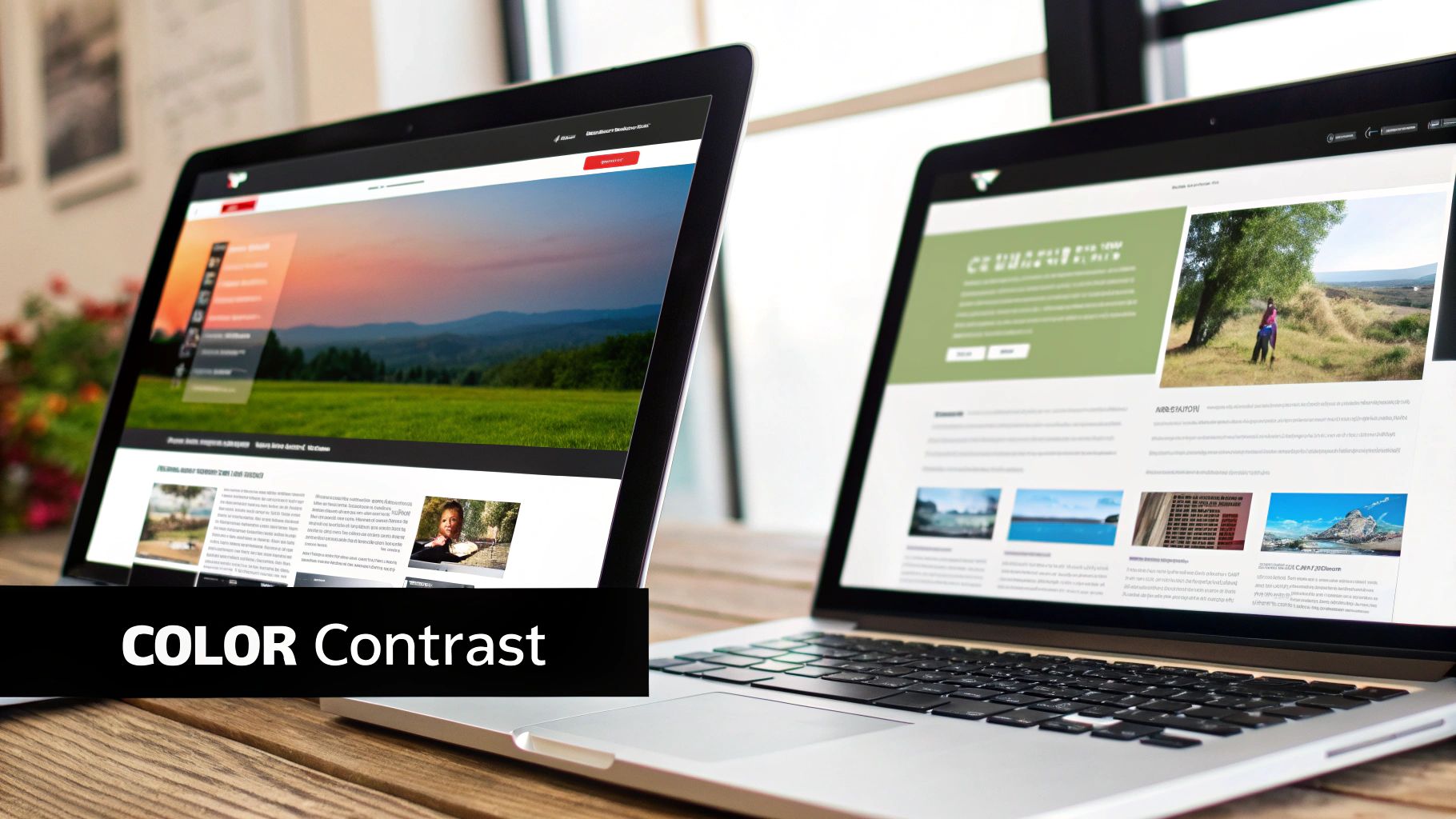
Color contrast and visual design are essential components of website accessibility, making content perceivable for users with low vision, color blindness, and other visual impairments. This isn’t just about meeting compliance standards—it directly affects a significant portion of your audience and improves the experience for everyone. Good color contrast ensures text and interface elements stand out clearly from backgrounds, while accessible design ensures information isn’t communicated solely through color.
Key Features of Accessible Visual Design:
- Minimum Contrast Ratio: Following WCAG (Web Content Accessibility Guidelines) is essential. Normal text requires a 4.5:1 contrast ratio (WCAG AA), while large text needs 3:1. This ensures users can distinguish between text and backgrounds.
- Alternative Cues: Never rely solely on color to convey information. Include patterns, icons, and text labels as backup cues. For example, pair a red warning with an error icon and clear text explanation.
- Resizable Text: Design your site so users can increase text size up to 200% without breaking functionality. This helps users with low vision who need larger text to read comfortably.
- Adaptive Layouts: Create designs that work across different screen sizes and text settings. This ensures content remains accessible regardless of device or user preferences.
Pros:
- Improved Readability: Benefits everyone, especially in difficult lighting conditions or when viewing screens in bright sunlight.
- Reduced Eye Strain: Makes extended reading sessions more comfortable, decreasing user fatigue.
- Inclusivity: Makes your content accessible to the 8% of males with color vision deficiency.
- Enhanced Design: Often results in cleaner visual hierarchy and better overall aesthetics.
Cons:
- Brand Consistency Challenges: May require adjustments to established brand colors that don’t meet contrast requirements.
- Testing Requirements: Needs thorough testing across various devices and conditions to ensure effectiveness.
- Balancing Aesthetics and Accessibility: Finding the sweet spot between strict contrast requirements and visual appeal can be tricky.
Examples of Effective Implementation:
- Apple: Consistently employs strong contrast and clear visuals throughout its interface design.
- Slack: Offers customizable themes including high-contrast options, letting users personalize their experience.
- GOV.UK: Shows how minimalist design with excellent contrast prioritizes clear communication.
Practical Tips for Implementation:
- Contrast Checkers: Use tools like WebAIM’s Contrast Checker or the Stark plugin to verify your color combinations.
- Grayscale Testing: View your site in grayscale to confirm information isn’t only conveyed through color.
- High-Contrast Mode: Consider adding a dedicated high-contrast viewing option for users who need it.
- Solid Backgrounds: Place text on solid backgrounds rather than patterns or images that reduce readability.
- Link Indicators: Add underlines or other visual cues to links rather than distinguishing them only by color.
Evolution and Popularization:
The importance of color contrast has gained significant attention through initiatives like Google’s Material Design accessibility guidelines, advocacy by experts like Robin Christopherson, and Microsoft’s Inclusive Design principles. These resources have helped raise awareness and provide practical guidance for developers and designers.
Why This Matters for Your Business:
Website accessibility is no longer optional—it’s a fundamental part of good user experience, broader audience reach, and better SEO performance. By prioritizing color contrast and visual design, you show commitment to inclusivity, strengthen your brand image, and improve overall website effectiveness. For businesses seeking better online visibility and long-term SEO success, accessible visual design is a smart investment that pays dividends in user satisfaction and engagement.
6. Form Design and Validation
Form design and validation might seem like a minor detail, but it actually plays a vital role in website accessibility. It ensures that all users, regardless of ability, can understand, interact with, and complete forms on your website. This matters tremendously for essential actions like registrations, purchases, and inquiries—core aspects of your website that directly impact conversion rates. For businesses looking to grow their online presence and improve SEO rankings, accessible forms aren’t optional—they’re essential.
Accessible forms go beyond merely following guidelines—they create positive, inclusive user experiences. Picture a potential customer trying to buy your product but unable to complete checkout because of poor form design. This leads to frustration, abandoned carts, and lost sales. For users with disabilities, poorly designed forms can create insurmountable barriers to accessing your services and information.
Key Features of Accessible Forms:
- Properly Associated Labels: Connecting labels to input fields using the
forattribute in<label>elements and theidattribute in<input>elements ensures screen readers can accurately convey each field’s purpose. - Clear Instructions: Providing straightforward guidance on expected data formats (like date or phone number formats) prevents confusion and errors.
- Descriptive Error Messages: Error messages should clearly identify what went wrong and offer helpful correction suggestions. They should appear next to the problematic field and be conveyed through multiple channels (color, icon, and text).
- Grouping Related Elements: Using
<fieldset>and<legend>elements to group related form fields makes forms easier to understand and navigate, especially for people using assistive technologies. - No Time Limits (or Appropriate Extensions): Time limits create unnecessary pressure and exclude users who need more time. If time limits are necessary, always offer options for extensions.
Pros of Accessible Form Design:
- Reduced Form Abandonment Rates: A smoother experience leads to higher completion rates for everyone.
- Improved Completion Rates for Users with Disabilities: Accessible forms remove barriers and enable all users to fully interact with your website.
- Fewer Customer Service Inquiries: Clear error handling reduces user confusion and support requests.
- Better User Experience and Conversion Rates: Accessible forms contribute to a positive overall experience, boosting conversions and SEO performance.
Cons of Accessible Form Design:
- Increased Development Time: Creating accessible forms may require more development effort compared to basic forms.
- Server-Side Validation Changes: Providing accessible error messages often requires adjustments to server-side validation processes.
- Complex Forms Need Careful Planning: Forms with conditional logic require thorough planning and testing to ensure accessibility.
Real-World Examples:
- GOV.UK Design System: GOV.UK offers an excellent example of well-documented, accessible form design. (https://design-system.service.gov.uk/components/form/)
- Shopify Checkout Process: Shopify’s checkout demonstrates clear error identification and helpful user guidance.
Practical Tips for Implementation:
- Always use
<label>elements properly associated with inputs through matchingforandidattributes. - Place error messages directly next to the field with the error, using distinct styling.
- Identify errors in multiple ways: color, icon, and clear descriptive text.
- Test your forms thoroughly using keyboard-only navigation and screen readers.
- Use autocomplete attributes where appropriate to make form completion easier.
- Ensure error messages are programmatically linked to their corresponding input fields so screen readers announce them.
Evolution and Popularization:
The importance of accessible form design has gained significant momentum thanks to dedicated accessibility advocates and organizations. Resources like Adam Silver’s “Form Design Patterns” book, Nielsen Norman Group’s usability research, and Marcy Sutton’s accessibility testing techniques have raised awareness and provided practical guidance for developers and designers.
In conclusion, investing in accessible form design is essential for creating a truly inclusive online experience. It not only helps users with disabilities but improves usability for everyone, leading to higher conversion rates, lower support costs, and a stronger online presence. For businesses aiming to succeed online, accessible forms aren’t just nice to have—they’re a business necessity.
7. ARIA Implementation
Making your website accessible is a win for everyone, including users with disabilities. Accessible Rich Internet Applications (ARIA) is a powerful tool that enhances web content and applications through HTML attributes, making them more usable for people using assistive technologies like screen readers. This accessibility approach is essential for businesses looking to expand their online reach while creating inclusive digital experiences.
ARIA fills the gaps where standard HTML semantics can’t fully deliver, especially for dynamic content and complex interface controls built with JavaScript. In today’s web environment, with its abundance of interactive elements and rich applications, these accessibility enhancements are particularly valuable. Without ARIA, many dynamic components remain invisible or confusing to users of assistive technologies.
Key Features and Benefits:
- ARIA Roles: Define what an element does (e.g.,
role="navigation"for a navigation menu), clarifying structure and function for screen readers - ARIA States and Properties: Attributes like
aria-expandedandaria-hiddencommunicate the current state of dynamic elements, helping screen readers provide proper context - Live Regions: The
aria-liveattribute notifies screen reader users about dynamic page updates without requiring page refreshes—perfect for chat applications or notifications - Landmark Roles: Define major webpage sections (e.g.,
role="main"for primary content), enabling quick navigation with assistive technology - Widget Roles: Support custom controls like sliders and dialog boxes, making these elements understandable to assistive technologies
Pros:
- Enhances accessibility for custom widgets and complex interactions
- Provides solutions for dynamic content changes where HTML alone falls short
- Improves screen reader announcements, making interfaces clearer
- Enables accessible single-page applications
Cons:
- Misuse Can Hurt: Incorrect implementation can actually reduce accessibility, making proper understanding crucial
- Testing is Essential: Real testing with assistive technologies (not just automated tools) is necessary
- Complexity: ARIA has a steep learning curve and detailed specifications
- Native HTML First: When possible, native HTML elements work better than ARIA alternatives
Real-World Examples:
Major organizations like Google (Material Design), Adobe (Spectrum design system), and the BBC (GEL guidelines) demonstrate effective ARIA implementation in their design systems. These resources offer practical examples and patterns you can adapt for your own projects. Studying their code and documentation provides valuable insights into how ARIA works in production environments.
Tips for Effective Implementation:
- The First Rule of ARIA: Don’t use ARIA if native HTML can achieve the same result. This principle should guide all your accessibility work.
- Real-World Testing: Test with different screen readers and browsers to ensure your implementation works across platforms.
- Understand the Accessibility Tree: Learn how ARIA modifies the accessibility tree—the structure assistive technologies use to interpret your page.
- Follow Established Patterns: Use the WAI-ARIA Authoring Practices (https://www.w3.org/WAI/ARIA/apg/) for tested, reliable patterns.
- Keep ARIA Updated: Make sure JavaScript updates ARIA attributes when element states change.
History and Influence:
ARIA is developed by the W3C’s Web Accessibility Initiative (WAI). Experts like Heydon Pickering (Inclusive Components) and Scott O’Hara have helped spread ARIA best practices through their tutorials and patterns. Their work has been key in raising awareness and providing practical guidance for developers worldwide.
By implementing ARIA correctly, businesses can significantly improve their website accessibility, creating better experiences for all users, expanding their reach, and demonstrating a genuine commitment to inclusivity. This represents a crucial step for any business serious about its online presence and long-term SEO strategy.
8. Accessible Navigation and Wayfinding
When you design your website, accessible navigation isn’t just a nice-to-have feature—it’s essential for creating an inclusive experience that works for everyone. Good navigation allows all users to understand where they are within your site and move confidently between sections, regardless of any disabilities they might have.
For businesses investing in their online presence, accessible navigation directly improves user experience—something search engines increasingly reward with better rankings.
Users who rely on screen readers or keyboard navigation particularly benefit from thoughtful design. These individuals navigate websites quite differently, using keyboard commands and depending on logical structure to understand your content and layout.
Key Features of Accessible Navigation:
- Consistent Navigation Patterns: Keep your navigation structure the same throughout your site to create predictability and reduce mental effort.
- Skip Links: Include hidden links that appear when tabbed to, allowing keyboard users to bypass repetitive menus and jump straight to main content.
- Breadcrumb Trails: Show users their exact location within your site hierarchy and provide quick links back to higher-level pages.
- Clear Indication of Current Location: Highlight the active page both visually and programmatically (using
aria-current) so users always know where they are. - Descriptive Link Text: Avoid vague phrases like “click here.” Instead, use specific text that makes sense even when read in isolation.
Pros:
- Makes your site easier to understand for everyone.
- Dramatically improves the experience for screen reader users.
- Helps users with cognitive disabilities complete tasks more successfully.
- Creates a more intuitive experience for first-time visitors.
- Contributes to better SEO rankings through improved user metrics.
Cons:
- May limit some creative design approaches.
- Can be harder to implement in single-page applications.
- Requires careful attention to maintain consistency, especially on larger sites.
Real-World Examples:
- Apple.com: Features a consistent global navigation bar with clear labels across their entire site.
- Mayo Clinic: Demonstrates excellent breadcrumb navigation that helps users understand complex medical information hierarchy.
- IKEA: Uses well-structured categories and clear navigation design to help shoppers browse their extensive product catalog.
Tips for Implementation:
- Add a search function as an alternative navigation method.
- Clearly identify the current page in menus, both visually and with the
aria-currentattribute. - Use specific, descriptive text for all links.
- Test your navigation with keyboard-only users to find potential problems.
- Consider adding a site map for complex websites. You might be interested in: [How to Create an Effective Sitemap]. For example, you can see our sitemap here: https://organicmediagroup.org/page-sitemap1.xml
- Use a logical heading structure (H1-H6) to further improve navigation for screen reader users.
Evolution and Popularity:
The Nielsen Norman Group has highlighted accessible navigation importance through their usability research. The Information Architecture Institute’s principles and the UK Government Digital Service’s design standards have also helped popularize these practices.
Read also: [The Importance of User Experience in SEO]. By making navigation accessible, businesses and digital marketers create a more user-friendly website that works for everyone, improves SEO performance, and builds a more inclusive online presence. For companies in competitive markets, accessible navigation isn’t just good practice—it’s essential for success.
9. Responsive and Mobile Accessibility

Making your website work well across all devices isn’t optional anymore—it’s essential. Responsive and mobile accessibility focuses on ensuring your content functions properly regardless of screen size, device type, or orientation. Many users with disabilities rely heavily on mobile technology and its built-in accessibility features, making this a critical consideration for reaching more users, enhancing experience, and improving your search rankings.
Ethan Marcotte’s responsive design principles have become the foundation for creating websites that adapt to different screen sizes through flexible grids, images, and media queries. Mobile accessibility builds on this by addressing the specific needs of users with disabilities on smaller devices. Research by Luis Abreu on mobile accessibility patterns highlights how important diverse interaction methods are for assistive technologies. Google’s shift to mobile-first indexing further underscores why this matters—they now primarily use the mobile version of your site for ranking and indexing.
Key features of a responsive and mobile accessible website include:
- Flexible Layouts: Content that smoothly adjusts to fit different screen dimensions
- Appropriate Touch Targets: Interactive elements sized at least 44×44 pixels to be easily tapped
- Orientation Support: Content remains usable whether the device is held vertically or horizontally
- Mobile Screen Reader Compatibility: Works properly with VoiceOver (iOS) and TalkBack (Android)
- Accessible Gestures & Alternatives: Simple alternatives for users who cannot perform complex touch gestures
Benefits of responsive and mobile accessibility:
- Broader Audience: Connects with the growing number of mobile internet users
- Built-in Accessibility: Takes advantage of accessibility features already in mobile operating systems
- Better User Experience: Creates smoother interactions for everyone, not just those with disabilities
- Faster Performance: Often results in quicker loading times on mobile devices
Challenges to consider:
- Complex Interactions: Some advanced features can be difficult to make accessible on small screens
- Testing Requirements: Thorough testing across multiple devices and screen readers takes time
- Mobile-Specific Solutions: Sometimes requires creating separate approaches for mobile users
Real-World Examples:
- Twitter’s mobile web interface: Provides excellent screen reader support for broader accessibility
- The Washington Post’s responsive site: Delivers accessible navigation across devices
- Etsy’s mobile shopping experience: Features an accessible checkout process for all users
Implementation Tips:
- Design for Touch First: Make all interactive elements easy to activate with fingers of any size
- Test with Actual Mobile Screen Readers: Don’t rely solely on desktop emulators
- Use Readable Text: Keep font sizes at 16px minimum so users don’t need to zoom
- Provide Alternatives to Complex Gestures: Don’t rely exclusively on actions like pinch-zoom
- Create Adequate Spacing: Leave room between clickable elements to prevent accidental taps
- Rethink Hover States: Convert desktop hover interactions into meaningful touch experiences
By making responsive and mobile accessibility a priority, you create a more inclusive website that reaches more people and demonstrates your commitment to accessibility. This approach leads to better engagement, improved search rankings, and a stronger online presence that works for everyone.
10. Automated and Manual Testing Processes
A strong website accessibility plan requires both automated tools and human testing. This two-pronged approach ensures you catch issues throughout development, creating a better experience for all users. Think of it this way: automated testing catches obvious problems, while manual testing reveals deeper issues that only human judgment can identify.
Why This Matters:
For businesses and marketers, website accessibility isn’t optional – it’s essential for reaching your full audience potential. In competitive markets, an accessible website stands out, attracting more visitors and improving your search rankings. Ignoring accessibility means potentially losing customers and facing legal challenges. Thorough testing helps prevent these problems.
Features of a Comprehensive Testing Process:
- Development-Integrated Automated Tools: Tools like Deque’s axe-core can flag common issues such as missing alt text or poor color contrast during development. This immediate feedback lets developers fix problems before they become embedded in the code.
- Keyboard Navigation Testing: Testing your site using only keyboard commands reveals how users with motor disabilities experience your content and highlights issues with focus management.
- Multi-Platform Screen Reader Testing: Using screen readers like NVDA, JAWS, and VoiceOver across different operating systems shows how visually impaired users experience your content, ensuring information is properly conveyed.
- Testing with Disabled Users: Direct feedback from people with disabilities provides insights that no automated tool can match, revealing real-world usability challenges.
- Ongoing Accessibility Checks: Whenever site changes occur, repeat accessibility testing to make sure new problems haven’t been introduced.
Pros:
- Catch Problems Early: Automated tools identify issues during development when they’re easier and cheaper to fix.
- Measure Progress: Automated testing provides concrete metrics for tracking your accessibility improvements over time.
- Build Developer Knowledge: Regular feedback helps your team learn accessibility principles, creating a culture that values inclusive design.
- Reduce Legal Exposure: Proactive testing significantly lowers the risk of accessibility-related legal issues.
Cons:
- Automation Limitations: Automated tools typically find only 30-40% of accessibility issues – human testing must fill the gaps.
- Manual Testing Takes Time: Thorough human testing requires significant time and expertise.
- User Testing Complexity: Finding and coordinating testing with people with various disabilities requires planning and specific knowledge.
- Learning Curve: Using screen readers effectively requires practice and training.
Examples and Evolution:
Industry experts like Karl Groves have shaped modern accessibility testing methods. The A11y Project’s checklist offers a practical framework for manual testing. Deque Systems’ axe-core has become the industry standard for automated testing, used by major companies like Microsoft and Google, which also implements continuous accessibility testing in Chrome development. These advances show the growing importance of accessibility in the tech world.
Practical Tips for Implementation:
- Add to Your Build Process: Integrate automated accessibility checks into your development pipeline for consistent feedback.
- Create a Testing Checklist: Develop a standardized list of manual tests covering keyboard navigation, screen reader compatibility, and other key aspects.
- Learn Screen Readers: Become proficient with at least one screen reader to better understand how visually impaired users navigate websites.
- Test Critical Paths First: Focus initial testing on your most important user journeys to maximize impact.
- Track Common Issues: Document recurring accessibility problems and share them with your team to prevent repeat mistakes.
- Get Expert Reviews: For important projects, consider hiring accessibility specialists to conduct thorough audits.
By combining automated and manual testing approaches, you’ll create a more accessible website that welcomes all users while improving your reach and search performance.
10-Point Website Accessibility Strategy Comparison
| Strategy | 🔄 Implementation Complexity | ⚡ Resource Requirements | 📊 Expected Outcomes | 💡 Ideal Use Cases | ⭐ Key Advantages |
|---|---|---|---|---|---|
| Implement WCAG 2.2 Guidelines | High technical effort; detailed criteria to implement | Continuous maintenance and testing required | Globally recognized compliance and enhanced accessibility | Sites needing legal compliance and comprehensive coverage | Comprehensive framework with clear, testable criteria |
| Semantic HTML Structure | Moderate; may require refactoring legacy code | Developer training and disciplined coding practices | Improved screen reader navigation and better SEO | Content-rich sites and sites upgrading outdated code | Enhances maintainability, SEO, and usability |
| Keyboard Accessibility | Moderate to high, especially in complex interactive components | Extra development time for custom widgets and robust focus design | Improved navigability and usability for keyboard-only users | Interactive sites and applications with dynamic features | Essential for motor-impaired users and overall accessibility |
| Accessible Images and Media | Low to moderate; depends on quality of alt text and captioning | Time-intensive captioning, transcript creation, and quality control | Enhanced perception of visual/audio content for all users | Media-rich websites and content-driven platforms | Broadly improves content understanding and SEO |
| Color Contrast and Visual Design | Moderate; balancing strict guidelines with brand aesthetics | Design tool integrations and multi-device testing | Better readability and reduced eye strain across settings | Visually-oriented sites requiring strong design clarity | Clear visual hierarchy with improved readability |
| Form Design and Validation | Moderate; careful planning needed to handle complex interactions | Developer time for robust validation and error handling | Increased form completion rates and reduced user frustration | E-commerce, registration, and transactional forms | Streamlines UX and boosts conversion rates |
| ARIA Implementation | High; steep learning curve and extensive testing needed | Requires specialized training and ongoing validation efforts | Makes complex, dynamic content accessible for all users | Custom widgets, dynamic interfaces, and single-page apps | Enhances accessibility when native HTML is insufficient |
| Accessible Navigation and Wayfinding | Moderate; requires consistency across the site | Strategic planning and regular accessibility testing | Clear site structure with reduced cognitive load | Large or hierarchical sites needing clear wayfinding | Improves user orientation and ease of site navigation |
| Responsive and Mobile Accessibility | Moderate; demands responsive design expertise | Extensive device testing and adaptation for various screen sizes | Consistent, accessible experience on mobile and desktop | Mobile-first sites and responsive designs | Leverages built-in mobile features for enhanced performance |
| Automated and Manual Testing Processes | Moderate; integration into CI/CD pipelines and manual testing required | Investment in testing tools and user feedback sessions | Early detection of issues leading to improved compliance | Development environments focused on continuous improvement | Provides objective feedback and minimizes legal risks |
Building a More Inclusive Web: Your Next Steps
Creating an accessible website requires attention to multiple areas that work together to serve all users effectively. From following WCAG 2.2 guidelines and using semantic HTML to ensuring keyboard navigation works properly, each element plays an important role in accessibility. Don’t overlook the basics like color contrast, accessible form design, and appropriate ARIA implementation. Well-designed navigation, mobile responsiveness, and thorough testing are equally important for creating a seamless experience for everyone.
To put these principles into practice, start with a clear plan and commit to ongoing improvements. Begin by conducting an audit of your current website to spot accessibility gaps. Start with simple fixes like adding alt text to images and organizing your heading structure properly, then move on to more complex elements like ARIA attributes and making dynamic content accessible. Regular testing with real users will help refine your approach.
Web standards and technologies continue to change, and accessibility practices evolve alongside them. Make it a priority to stay informed about updates to WCAG guidelines and new developments in assistive technologies. By approaching accessibility as an ongoing commitment rather than a one-time project, your website will remain inclusive for the long term.
Key Takeaways:
- Accessibility benefits everyone: An accessible website improves the experience for all users, not just those with disabilities.
- WCAG is the foundation: Adhering to WCAG guidelines provides a robust framework for accessibility implementation.
- Testing and iteration are essential: Ongoing testing and user feedback are crucial for continuous improvement.
- Accessibility is an ongoing process: Stay up-to-date with the latest trends and best practices to maintain an inclusive online presence.
Ready to make your website more inclusive and effective? Organic Media Group specializes in creating accessible, SEO-driven websites that deliver real results. We combine technical know-how with a deep understanding of user experience to build websites that rank higher in search results while connecting with a broader audience. Let us help you maximize your online presence and drive meaningful growth for your business. Visit us at Organic Media Group to learn more.